Troubleshooting
Common issues and how to resolve them.
Stream Matching
Streams show as “Failed” after generation
Failed streams couldn’t be matched to a real sporting event. Click the Failed count in the Dashboard’s run history to see each stream’s failure reason, and use Fix to manually match a stream to an event.
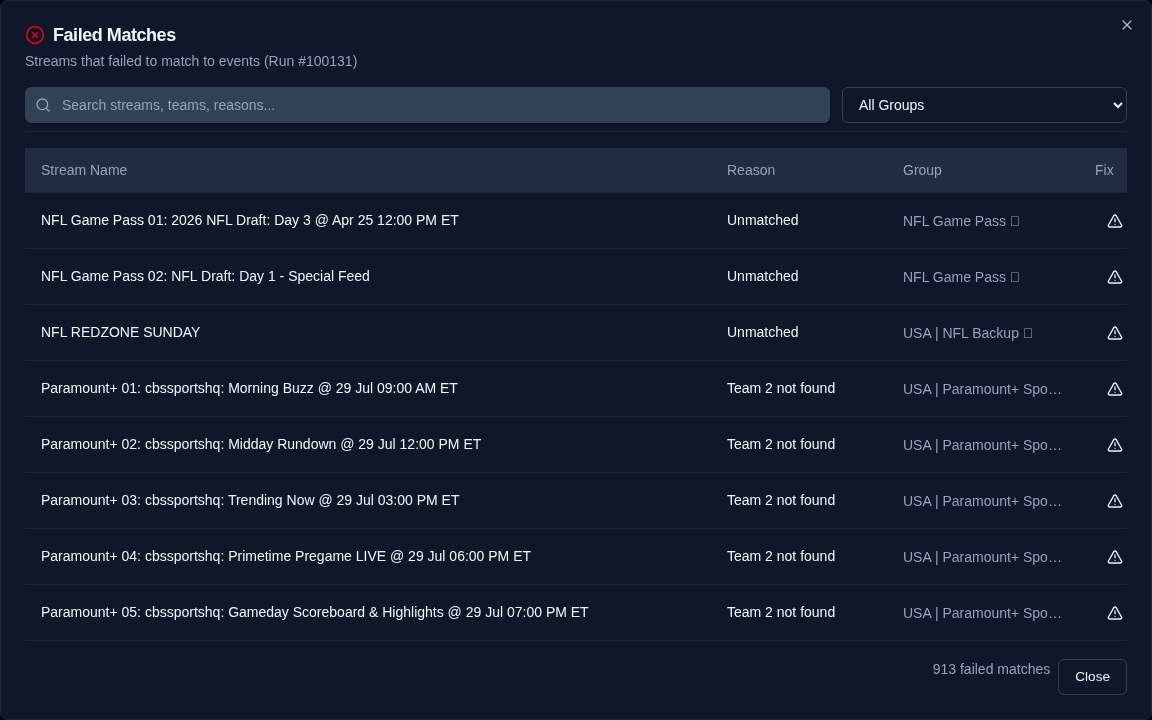
Common causes:
- Stream name too vague — Names like “Sports 1” or “NBA 3” don’t contain team names. Teamarr needs identifiable team or event information (or EPG program matching for linear channels).
- League not subscribed — The stream’s league isn’t in your Subscription (or a Source’s subscription override). This is the most common cause — add the league under Subscriptions and regenerate. Newly-created custom leagues are auto-subscribed, but check the Custom Leagues list for a Not subscribed badge.
- Team name mismatch — Your IPTV provider uses a non-standard name. Add a team alias under Matching → Custom Rules to map it to the official name.
- Date mismatch — Streams with dates in DD/MM format may be parsed as MM/DD. Use custom regex extractors with named groups (
(?P<day>...)/(?P<month>...)) to teach Teamarr the format.
Streams matching the wrong event
- Click the Matched count in the Dashboard’s run history and use Fix on the wrong match to correct it manually — the correction persists as a “User Fixed” match
- Check Matching → Custom Rules for conflicting league or sport hints
- Verify your stream filters (include/exclude regex) aren’t too broad
- Use the preview button on the Sources page to see matches without running a full generation
Channels
Channels not appearing in Dispatcharr
- Verify Dispatcharr integration is connected (Settings → Dispatcharr shows “Connected”)
- Verify an EPG source is selected
- Run EPG generation and check if streams matched successfully
- Check channel lifecycle timing — channels may not be created yet based on your create timing settings
Channels disappearing unexpectedly
- Check delete timing — channels are deleted based on post-event buffer settings
- Review the Recently Deleted section on the Dashboard
- With “Same day” delete timing, channels are removed at the end of the event’s day; events that run past midnight fall back to the post-event buffer
Channels show red in Dispatcharr
For an EPG-matched event channel, red is usually normal — it just means no stream is attached right now. EPG matching attaches a linear stream (ESPN, FS1…) only within a window around the matched program, controlled by the Attach before / Detach after buffers on the Matching page (default 60 min each). Outside that window the stream is intentionally detached and the channel goes red. Red during an event’s window is worth investigating — see Why some channels show red in Dispatcharr.
Channel numbers colliding with existing channels
Teamarr automatically skips numbers used by non-Teamarr channels, but for a clean block set the Everything Else Start in Channels → Numbering to a range that doesn’t overlap your existing Dispatcharr channels.
Stale logos in media server
Some media servers (particularly Jellyfin) cache channel logos aggressively. Enable Scheduled Channel Reset in Settings → Advanced to periodically purge and recreate channels before your media server’s guide refresh.
Dispatcharr Connection
“Connection error” when testing
- Verify the URL includes the protocol (
http://orhttps://) - Check that Dispatcharr is running and accessible at the specified port
- If using Docker, ensure both containers are on the same network or use the correct IP/hostname
- Check for firewalls blocking the port
EPG source dropdown is empty
You need to add Teamarr’s XMLTV URL as an EPG source in Dispatcharr first. Copy the EPG URL from the Dashboard status strip and add it in Dispatcharr’s EPG sources.
Generation
Generation takes too long
- Reduce Event Lookahead on the Matching page (shorter window = fewer events to check)
- Reduce Schedule Days Ahead under EPG → Team EPG (fewer days = less schedule data)
- Use per-Source subscription overrides to limit which leagues each source scans
- Refresh the team/league directory if it’s stale (Settings → Advanced → Data Caches → Refresh Directory)
The API Calls column in the Dashboard’s run history shows provider calls per channel. Healthy runs sit in the low single digits; an amber/red value means something is refetching abnormally and is worth a bug report.
Generation fails or shows errors
Check the logs for details:
# Docker
docker logs --tail 200 teamarr

# Log file (inside container or data volume)
tail -n 200 data/logs/teamarr.log
Common causes:
- Network timeout reaching ESPN or TSDB APIs
- Dispatcharr API returning errors (check Dispatcharr logs too)
- A generation is already running — concurrent runs are refused; wait for the active run to finish
Database & Upgrades
Startup crash after upgrade
If Teamarr fails to start after pulling a new image, check the logs for migration errors. Never delete teamarr.db — it contains all your configuration; migrations handle schema changes automatically. If startup still fails, file a bug report with the error message.
Restoring a backup
Go to Settings → Advanced → Backup & Restore. Upload a .db backup file. A backup of your current database is created automatically before restoring. The application needs to be restarted after restore.
Logs
Teamarr writes to two log files in the data/logs/ directory:
| File | Contents | Rotation |
|---|---|---|
teamarr.log | All log messages (DEBUG and above) | 10 MB x 5 files |
teamarr_errors.log | Errors only | 10 MB x 3 files |
The console log level is controlled by the LOG_LEVEL environment variable (default: INFO). File logs always capture DEBUG regardless of this setting.
# View recent logs
docker logs --tail 100 teamarr          # Console output
docker exec teamarr cat data/logs/teamarr.log | tail -100  # Log file
Getting Help
Support bundle
Use Support bundle in the footer to download a redacted diagnostic ZIP. Attach the ZIP to a support request instead of a database backup. It includes configuration, source and subscription diagnostics, the matching library (aliases, detection and exception keywords, condition presets, persistent corrections, and source-template mappings), recent run and match details, managed-channel ordering evidence, and bounded log excerpts. Stream URLs, M3U account names, passwords, API keys, tokens, template bodies, XMLTV, and provider caches are excluded. Redaction also applies inside JSON-typed settings such as the Emby and Jellyfin server lists.
The report opens with automatic signals — things worth checking before reading further: Dispatcharr disabled, no enabled sources, active teams without a template, the latest generation not completing, a media server whose refresh has failed on consecutive runs (media_server_refresh_failing, with the server and last error as evidence), sources that matched none of their streams (source_matching_zero) or under half of them (source_matching_degraded, info), and no managed channels stored.
The two matching signals read the per-source breakdown on the most recent completed run. A source is only reported once it had at least 10 streams left after filtering — the denominator is streams the matcher was actually asked about, so a source that is merely out of season (streams fetched, all filtered out) stays quiet. Each lists the worst offenders by stream count plus a total, because on a large install a handful of sources legitimately match nothing: generic channel groups like a news or a general-entertainment feed have no fixtures to find.
- GitHub Issues: github.com/Pharaoh-Labs/teamarr/issues
- Discord: Join the Dispatcharr Discord server — there’s a Teamarr channel