Stream Priority
Configure rules for ordering streams within consolidated channels. When multiple streams are merged into a single channel (see Consolidation), these rules determine which stream is listed first — the “primary” stream.
This is distinct from channel ordering, which controls a channel’s position in the lineup.
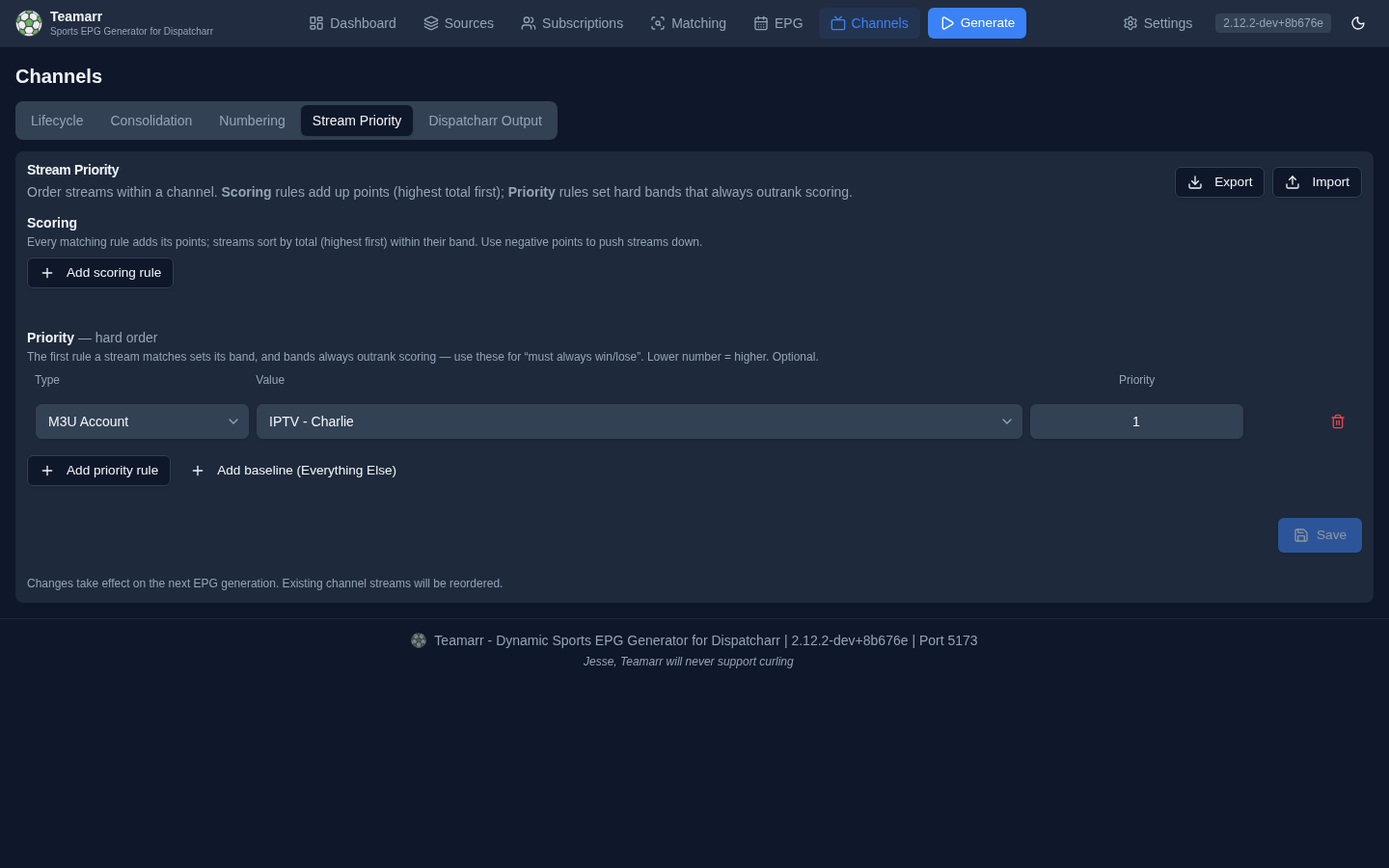
With no rules configured, streams are listed by source id and then by the time they were added — see Source order.
Scoped rulesets
The Global tab is the default for every channel. Add scoped tabs to use a different policy for selected sports, leagues, or both. Teamarr selects one tab for each channel, in this order:
- A tab that includes the channel’s league.
- A tab that includes the channel’s sport.
- Global.
A sport or league can be assigned to only one scoped tab, so this selection is always unambiguous. A tab that includes several sports or leagues can therefore serve a shared policy, while a league tab can override a broader sport tab.
Scoped tabs inherit both sections from Global initially. Inherit Global beside the Scoring and Priority headings controls each section independently. When enabled, Global rules are read-only but scope-specific rules can still be added alongside them; later Global changes continue to apply. The Priority setting includes the Everything Else baseline. Turn off inheritance to use only the local section, or use that section’s Clone from Global button to replace its local rules with an editable snapshot of the current Global rules. A scoped tab can, for example, keep Global Priority bands while using sport-specific scoring.
Two ways to rank: Scoring and Priority
Every rule belongs to one of two classes, added with the separate Add scoring rule and Add priority rule buttons. Both use the same rule types — the difference is how a match affects ordering.
| Class | How it ranks | When to use |
|---|---|---|
| Scoring | Additive. Each matching rule adds its signed points; a stream’s points are summed and the highest total sorts first. Negative points push a stream down. | The everyday case — nudge streams up or down by several attributes at once (preferred provider, HD, right feed) and let the totals decide. |
| Priority (hard order) | The first Priority rule a stream matches sets its band (1–99). Bands always outrank scoring, so a Priority match is a hard “must always win / must always lose”. Lower number = higher priority. | Escape hatch for absolutes: “streams from this account always come first,” “EPG-matched streams always come last.” |
How the two combine. A stream is ranked by its hard band first, then by its total score within that band, then by source order (source id, then the time it was added). Because bands are strict, no amount of score moves a stream out of its band — scoring only reorders streams that share a band. Streams that match no Priority rule fall into the baseline band (see Everything Else).
Example — push EPG-matched streams to the back: a Scoring rule M3U Account = “Premium IPTV” at +100 plus a Scoring rule Stream Type = EPG matched stream at −100000. Premium streams float up; anything EPG-matched sinks below everything, premium or not.
Source order
Streams that tie on band and score are ordered by the id of the source that attached them (the order sources were created), then by the time each stream was added. That tie-break is fixed. Dragging rows on the Sources page arranges that table and nothing else — it never changes which feed a channel lists first.
That was not always so: before v2.25 the drag order was also the order sources were read, so it quietly acted as a second stream-priority mechanism beside the rules on this page. Two places to express the same intent is a trap, so there is now one: to put one source’s feeds ahead of another’s, add a Source Group or M3U Account rule here.
Rule Types
Any rule type can be used as a Scoring rule or a Priority rule.
| Type | Description | Example |
|---|---|---|
| M3U Account | Match streams from a specific M3U account | “Premium IPTV” → +100 |
| Event Group | Match streams from a specific source | “ESPN+ Group” → +20 |
| Regex Pattern | Match streams whose name matches a regex (case-insensitive) | 1080p → +15 |
| Stream Type | Match by how the stream was recognized: event stream, team stream, or EPG matched stream. Optionally narrow a team-stream rule to specific teams. EPG matched stream covers streams attached via EPG program-data matching — i.e. time-shared linear channels (ESPN, FS1) matched to events through Dispatcharr’s program guide. The three types are mutually exclusive: an EPG-matched stream only ever matches the EPG matched stream option, never event or team — regardless of rule order. | Team stream → +10 |
| Specific Team’s Feed | Match streams identified as a particular team’s own broadcast — via the matching engine’s resolved feed team or, as a fallback, home/away markers in the stream name. Pick one or more teams. Invert flips it to match feeds that are not your selected teams (useful for pushing other teams’ feeds down). Selections are scoped by sport: providers reuse team ids across sports (ESPN’s Cubs and Vikings are both id 16), so a team picked in one sport never matches a same-numbered team in another, while a team picked from one competition still matches its feeds in another competition of the same sport (Liverpool in the Premier League and the Champions League). | Selected teams → +30 |
| Feed Side | Match the home or away side’s feed for whichever teams are playing — no team selection needed. Use it for a standing preference like “always give me the home broadcast.” Streams whose side couldn’t be determined match neither option; see the note below. | Home side’s feed → +30 |
| Dispatcharr Group | Match channel-source streams by their Dispatcharr channel group. The dropdown lists the groups you selected under Dispatcharr as a Stream Source. Only channel-source streams carry a Dispatcharr group; regular matched streams are unaffected. | “US | Sports” → +5 |
| Dispatcharr Channel | Match channel-source streams read from one specific Dispatcharr channel. The dropdown lists the channels in the groups you selected under Dispatcharr as a Stream Source. The rule follows the channel itself, so renaming it in Dispatcharr doesn’t break it; a channel that has since left those groups stays selected and is marked not in the current list. Streams from M3U sources never match — use Regex Pattern for those. | “FanDuel Sports Wisconsin” → +50 |
| Stream Stats | Match streams whose quality meets numeric thresholds — resolution width/height, source FPS, output/audio bitrate, sample rate, or audio channels (a count — 2 is stereo, 6 is 5.1; Dispatcharr stores either the number or the layout word and Teamarr reads both) — using >, <, >=, <=, =, or Unknown (matches streams with no value for the metric). Combine several conditions (all must pass). Use it to float HD / high-bitrate streams ahead of lower-quality ones — or use Unknown to demote unprobed streams. | resolution_height >= 1080 and source_fps >= 50 → +25 |
| Everything Else | Optional catch-all baseline for any stream not matched by a Priority rule. Only meaningful as a Priority rule — it sets the band unmatched streams land in. | Everything else → priority 99 |
Stream Stats values come from Dispatcharr’s stream probe and are cached per stream. Teamarr refreshes that cache in two places: at the start of generation’s ordering step, in one bulk pull covering every stream on a live channel, and when you view a channel’s streams in the Dashboard (where it re-pulls if the stats are missing or older than an hour). The generation refresh runs only when your ruleset actually contains a Stream Stats rule, so rulesets built from M3U / Group / Regex pay nothing for it. Teamarr never probes streams itself — it reads whatever Dispatcharr last measured, so a stream Dispatcharr has not probed still has no values. For the comparison operators, a stream with no value is treated as not matching; the Unknown operator matches exactly those streams.
Points
Scoring rules take a signed integer in the Points column (±100000 max). New scoring rules start at +10. Positive points promote a stream, negative points demote it, and totals accumulate across every scoring rule a stream matches. There is no need to space values out — points only ever compete within a band, so +1/+2/+3 ranks the same as +10/+20/+30.
The “Everything Else” baseline
A catch-all is not added automatically. Streams that match no Priority rule fall to the default baseline band (999 — you’ll see it in the priority explainer), so you only need an explicit Everything Else row when you want to place that baseline at a specific priority relative to your other Priority bands. Add one with the Add baseline (Everything Else) button in the Priority section; there can only be one.
Feed side is home, away, or unknown
Feed Side rules read a side Teamarr resolved and stored when the stream was attached — from an explicit HOME/AWAY marker in the stream name, from the side of the team that matched, or by comparing the resolved feed team against the event’s two teams.
When none of those produce an answer, the side is unknown, and unknown is a real answer rather than a fallback to the other side. A stream is unknown when:
- it carries no feed signal at all (a national broadcast, a generic listing) — the common case;
- a feed team resolved but matches neither team in the event;
- the sport has no home and away at all (racing, combat sports, individual events).
An unknown stream matches neither the Home nor the Away rule and falls through to Everything Else. It is never treated as the opposite side just because it isn’t this one. You can see each stream’s resolved side in the Dashboard: expand a channel and check the Feed column, where unknown shows as —.
Existing streams show — until their next generation run fills the side in; nothing is back-filled retroactively, because deriving a side for an old row would mean guessing at exactly the rows the guess would be worst for.
At a neutral-site game (bowls, tournament finals) Teamarr keeps the provider’s nominal home designation rather than forcing unknown — the provider told us a side, so the rule still works there.
Only when
Every rule has an Only when dropdown. Left on Always, the rule behaves as it always has. Set to a condition, the rule applies only on channels whose game meets it — which lets the same stream rank differently from one game to the next, something no fixed score can do.
| Condition | The rule applies when |
|---|---|
| No local broadcast | The game lists no home-market or away-market broadcaster for either team — an exclusive national game |
| Postseason / Regular season / Preseason | The game is of that season type |
The case it was built for: a provider’s permanent team channel is attached to every one of that team’s games, including the nationally exclusive ones where it shows nothing. A rule Stream Type: Team stream, −20000, only when No local broadcast leaves the team channel where your other rules put it on a normal night and drops it to the bottom on a dark one, so whichever stream is carrying the game leads. A second rule with Postseason does the same for October.
What to know before relying on it:
- It reorders; it does not remove. The stream stays on the channel, at the bottom.
- It reads the broadcasters listed for the game. A game that is on a national network and a team’s own network still lists the local one, so it is not treated as dark. Checked against league schedule data, the listing was right for all 162 games of one MLB team’s 2026 season and for 791 of 794 NHL games between US teams in 2025-26.
- Canadian teams are less reliable. Canadian regional broadcasts are often missing from the listing: about one NHL game in ten involving a Canadian team reads as “no local broadcast” when there was one. Every miss was in that direction — a working channel wrongly demoted — so avoid the condition for those teams.
- Unknown never applies. A game with no broadcaster listing at all, or a provider that doesn’t tag markets, leaves the rule ignored rather than guessed.
- Put it in a scoped tab. In a league where every game is national (the NFL), “No local broadcast” is true every week; a league-scoped ruleset keeps the rule to the leagues it makes sense for.
- Event channels only. Managed team channels carry no per-game facts, so a conditioned rule never applies to them.
The explainer shows the condition beside any conditioned rule that matched.
Team filters
Both Stream Type (team streams) and Specific Team’s Feed rules let you pick specific teams. Leaving the team selection empty makes the rule a no-op — a Stream Type rule with no teams matches all team streams, while a Specific Team’s Feed rule with no teams matches nothing. Use the Default button to load your configured team-filter include list, or Clear to start fresh. Feed Side rules take no team selection at all — they apply to whichever teams are playing.
How team-feed detection works
The Specific Team’s Feed rule first checks the resolved feed team stored during matching — the Feed Separation engine’s verdict from broadcast-market listings, team-branded names (Brewers.TV), and tvg-id/tvg-name. Identification always runs, whether or not the Feed Separation toggle is on and whatever its sport scope is (both control only channel splitting), and team streams (MLB | Milwaukee Brewers) carry their matched team the same way. When no team was resolved, it falls back to scanning the stream name for your selected teams plus a feed indicator — a matchup (vs, at, @), a side (home/away), a camera label, or a (Team feed) / (Team In-Arena) marker. Generic streams with neither are left for other rules.
Teamarr keeps Dispatcharr’s order in step
Every generation run compares the order Dispatcharr is actually holding for each channel against the order your rules call for, and re-pushes whenever the two differ — not only when a rule changed something. So an order that drifted for any reason (a push Dispatcharr rejected, a hand edit in Dispatcharr, a channel repaired by reconciliation) is corrected on the next run instead of sticking.
Channels already in the right order aren’t touched, and a live event’s pinned #1 stream is left alone (see below).
Live events keep their #1 stream
While an event is airing, scheduled generation runs won’t displace the channel’s top stream — the one a viewer is most likely watching. Rule changes still take effect in the background (priorities are recomputed and stored), and new streams that match mid-event are added below the current #1, but the top slot itself stays put until the event ends. The first run after the event restores full rule ordering.
The pin holds because the top slot is presumed to be what somebody is watching. When a probe contradicts that — the cached Stream Stats say the stream is dead or a black screen — the pin releases and normal rule ordering takes the top slot, because a stream that isn’t there is not one anybody is watching. Only an actual measurement lifts it: a stream with no stats, or stats that say nothing about liveness, stays pinned, since not knowing a stream is dead is not the same as knowing it is.
A manually triggered generation run bypasses this pin entirely — that’s your escape hatch if the pinned stream is the wrong one for any other reason: fix your rules (or remove the bad stream) and hit Generate, or press Order streams now on this page.
Order streams now
The Order streams now button at the bottom of the rules page re-sorts every managed channel by the saved rules without running a generation: it pulls fresh Stream Stats from Dispatcharr, re-applies the rules, and pushes only the channels whose order changed. Nothing else runs — no matching, no EPG rebuild, no media-server refresh — so it finishes in seconds. Like a manual generation it bypasses the live-event #1 pin, and it is unavailable while you have unsaved rule edits or a generation is in progress.
Why is a stream ordered this way?
In the Dashboard’s Managed Channels table, expand a channel and click a stream’s priority number to open a popover that explains its ordering against your current rules: the hard band it landed in (and which Priority rule, if any, set it), plus each Scoring contribution with its points. If the stored number was computed under rules you’ve since changed, the popover marks it stale so you know a regeneration will re-rank it.
When any scoring rule exists, the stored priority number is an encoding of band and score together (band × 1,000,000 − score) — that’s why you’ll see values like 1000090 in the priority column. Rulesets with only Priority rules keep small numbers (1–99, or 999 for the baseline).
Export & Import
Use the Export and Import buttons in the Stream Priority header to back up your rules or move them between instances.
- Export downloads your last saved rules — including each rule’s class (Scoring/Priority) and points — as a
stream-ordering-rules.jsonfile (the button is disabled until rules are saved). If you have unsaved edits in the editor, Teamarr warns you first — save before exporting if you want those edits included. - Import reads a rules file — either a bare rules array or a
{rules: […]}envelope — and replaces your entire current rule set. Rules with an invalid type, value, or priority are skipped. Older files that predate scoring import fine: rules with no class default to Priority. No catch-all is force-added.
Rules that reference an M3U account, source, or Dispatcharr group match by name, so they carry over cleanly to another instance as long as the same names exist there. Team-based rules (Stream Type and Specific Team’s Feed) reference provider team IDs and only apply to teams present on the target instance. Feed Side rules carry no team references at all, so they port cleanly.