Sources
A Source is an IPTV stream group that Teamarr matches to real-world sporting events. Event channels are dynamic: unlike a persistent linear channel, an event channel appears when a game is about to start and disappears after it ends.
Sources were called Event Groups before v2.7.0. The app route is now
/sources. Settings that used to live under Settings → Event Groups are split across the Source editor, the Matching page (EPG-matching tuning, Event Lookahead), and Channels (numbering, groups, profiles).
How It Works
- Your IPTV provider delivers streams organized into groups (e.g., “NFL”, “ESPN+”, “DAZN”)
- You import these stream groups into Teamarr as Sources
- Teamarr parses each stream name, matches it to a real sporting event, and creates a channel with rich EPG data
- Channels are created in Dispatcharr with proper names, logos, EPG data, and group/profile assignments
Which leagues a source scans is governed by your global Subscription — configured on the Subscriptions page, not here. A source can override the subscription with its own league set when needed (e.g., a hockey-only source that shouldn’t scan for football events).
The Sources Table
The Sources page header shows an overall X% matched summary and the Add Stream Source button. The table lists every configured source: Rows marked Dispatcharr group are the channel groups selected under Dispatcharr as a Stream Source; they are added and removed there, and here you can only set their league scope and team filter.
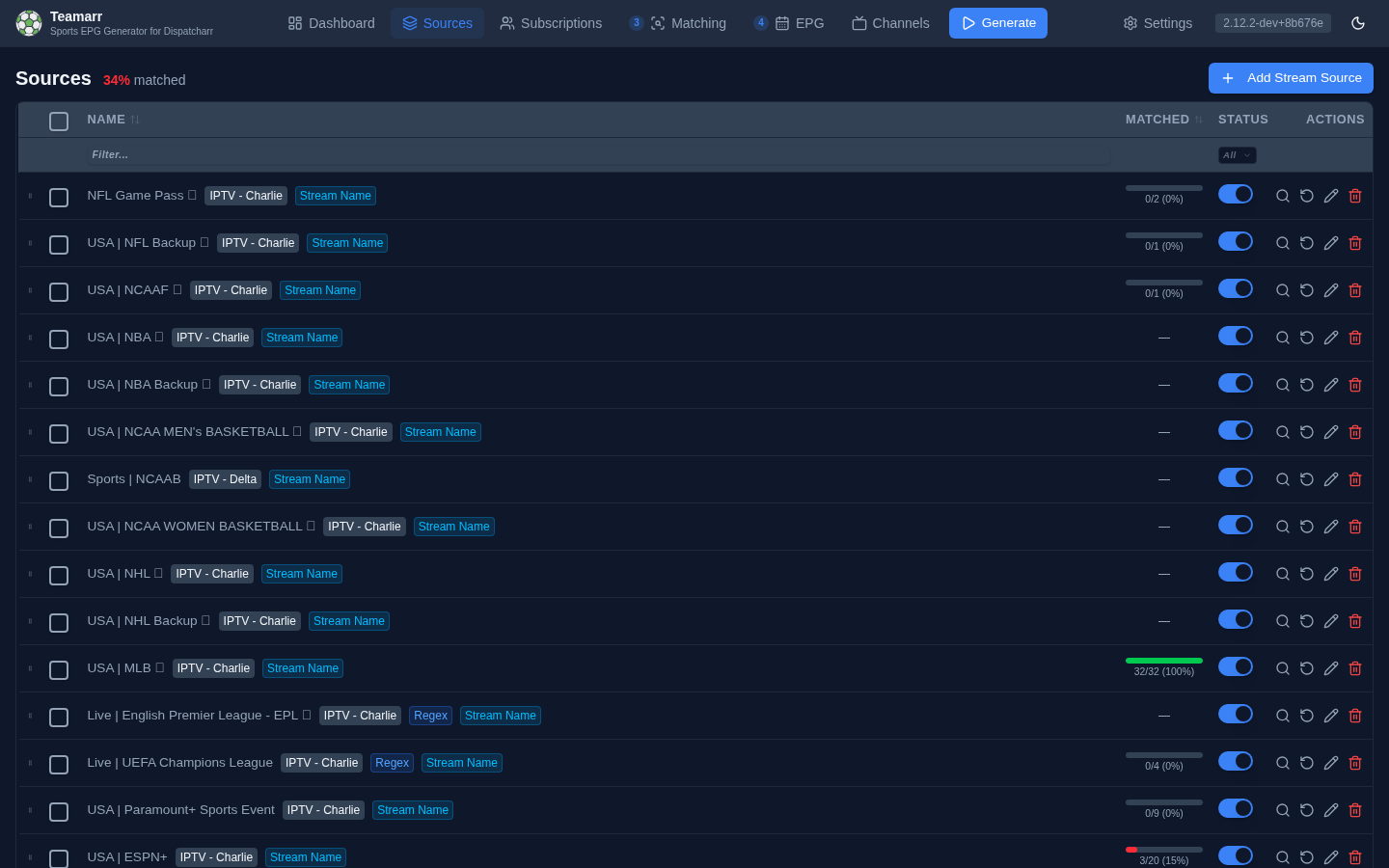
| Column | Description |
|---|---|
| (drag handle) | Drag rows to arrange the list or drop them onto a folder. Arrangement is cosmetic — it never affects matching or stream priority |
| (checkbox) | Multi-select for the bulk action bar |
| Name | Source name and a color-coded badge per active matching type (plus a Regex badge when custom regex is configured — team-vs-team extraction patterns or include/exclude stream filters) |
| Provider | The M3U account the source reads, or Dispatcharr for a channel source. Click it to filter the list to that provider |
| Leagues | What the source matched in the last run, one chip per league — NHL 97 means 97% of the streams this source matched were NHL games. The number is a share of the source’s matched streams, never of all its streams, so a one-league source reads 100 whatever its coverage. As many chips as fit, then +N; hover for the full breakdown and the run time; click a chip to filter the list to that league. No matches yet means nothing matched in that run |
| Matched | Stream coverage — how many of the source’s eligible streams matched at least one event, as a 0–100% bar. Hover for total matches produced and the last-run timestamp |
| Status | Enable/disable toggle |
| Actions | Preview matches, clear cache, edit, delete |
Column headers sort (Name, Provider, Leagues by top league, Matched, Status), and a filter row narrows the list by name, provider, sport or league, and status. While a column sort is active the list is flat and the drag handles are hidden; Arrangement in the Actions header brings back your own order.
Folders
Folders are an optional way to arrange the table — one level, as many as you like, and purely cosmetic: a folder never changes which source reaches a game first or which stream a channel lists first (that is stream priority). Folders stay collapsed or expanded as you left them.
- Arrange → New folder… creates one. Drag sources onto its header, or select them and use Move to folder in the bulk action bar. Drag a folder’s header onto another to reorder folders; click a folder’s name to rename it; the × on its row removes the folder and puts its sources back at the top level, positions kept.
- Arrange → Group into folders builds folders for you, as a one-time action you can repeat whenever you like (it never runs on a schedule). By provider makes one folder per M3U account plus one for Dispatcharr channel sources. By sport and By league read the Leagues column: a source goes under its top sport or league when that one is at least 80% of what it matched in the last run, otherwise under Multi; a source with no matches stays at the top level. The result is ordinary folders — drag, rename and delete as usual.
- Arrange → Undo last arrange restores the folders and positions from before the last Group or Remove action, exactly. One level of undo. Remove all folders flattens the list, sources keeping their order. Selecting rows raises a bulk action bar: Enable, Disable, Clear Cache, Edit (bulk-edit shared settings), and Delete. Bulk Edit covers the stream timezone, the team filter, the three matching toggles, the subscription (league) override, the built-in-filter skip, the stream include/exclude regexes and every custom regex — only the fields you check are changed, and setting a pattern in bulk also switches it on while clearing it switches it off. When stale sources exist, a Delete all stale action appears.
To see which streams matched or failed (and fix failures manually), use the Matched/Failed drill-downs in the Dashboard’s run history — the Sources table shows rates, not per-stream detail. The per-source preview button shows current stream matches without running a full generation.
Preview lists each unmatched stream with what the classifier actually read out of its name — the two team names it parsed, and the date, time and timezone it extracted — plus the detected league as a dashed badge in the League column and the same failure reason the run-history Failed drill-down shows. When a stream fails, that line usually says why: a team name that swallowed the provider prefix, a date read in the wrong format, or a league hint pointing somewhere unexpected.
The percentage is stream coverage: distinct streams matched ÷ eligible streams (always 0–100%). The hover tooltip shows matches produced — the total number of stream→event matches. With EPG matching, one linear stream (ESPN, FS1…) is time-shared across many events, so matches produced can far exceed the stream count. These are tracked separately so coverage stays a true health signal.
Importing Sources
Click Add Stream Source to open the import screen. It lists your Dispatcharr M3U accounts in a sidebar; selecting one shows its stream groups with stream counts.
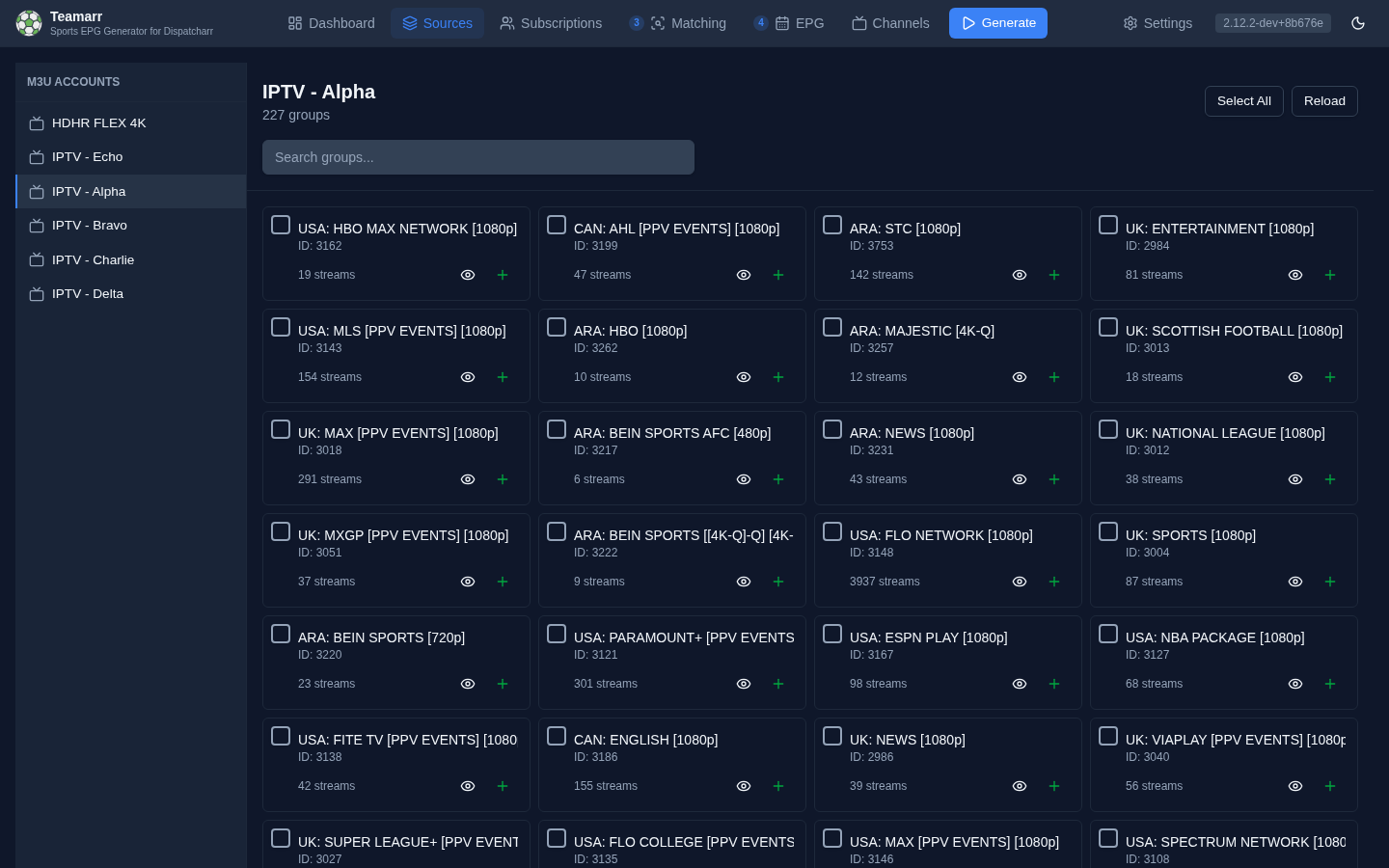
From there:
- Preview (eye icon) shows a group’s streams before importing.
- Single import (+ icon) opens the full source editor for that group.
- Import N Groups imports your selection in bulk, via a modal that sets the shared settings up front: Stream Timezone, Enabled, and the three matching types (Stream name matching, Team stream source, EPG program matching).
Automation
Everything Teamarr does to the source list on its own lives in one place: Automation, at the top of the Sources page, with four blocks in the order things happen. The rules are settings; the daily scan and every generation run read the same ones. A source you add or edit yourself is touched only by the last rule, and only if you switch it on.
Discover
Providers add, rename and drop M3U groups through the year, so a hand-kept source list drifts. Once a day at 11:00 local time, while the Scan daily switch is on (it is on by default), Teamarr reads every M3U group that is not already a source, puts every stream in it through the same filtering and matching a generation run uses, and records which groups carried events in leagues you subscribe to. Press Scan now to run one sooner. Evidence is kept for a week, because most groups are empty or placeholders between match days:
| Badge | Meaning | |
|---|---|---|
| Events found | A scan matched streams in the group to real events. Three matched streams are enough; one is enough when the group’s name also names a subscribed league. | |
| Team streams | The group’s name names a subscribed league and its streams are that league’s teams (“NFL | Dallas Cowboys”). Added as a team-stream source. |
| Name only | The group’s name names a subscribed league, but no scan has matched anything in it yet — usually a group waiting for match day. It drops off the list by itself if it has had streams every day for a week and still matched nothing. |
Discovery reads stream names only. It does not use EPG matching: reading the guide for hundreds of linear channels on every scan would cost far more than it finds. A group of linear channels (“ESPN”, “TSN1”) is never suggested; add it as an EPG-matching source yourself, or select its channel group under Matching → Dispatcharr as a Stream Source.
Three kinds of group are never suggested: replay groups (the name says replay, or most stream names do), news and regional channels (a stream naming one team counts only in a league the group’s own name names), and groups you dismissed.
The list is flat and organized by the M3U account each group comes from. When two suggested groups carry the same events, the weaker one says same events as …; both stay listed. Add creates the source. ✕ dismisses the group. Tick several rows, or a whole account, to add or dismiss them together.
Decisions are remembered. A dismissed group is not suggested or scanned again unless you restore it from Show dismissed groups, also when the provider renames it and it comes back under the same name. Deleting a source you added from a suggestion counts as dismissing its group. A source you added is never offered again; if it is later removed because its group disappeared, it is added back when the group returns.
A renamed group is handled here too: the old source goes missing (see Remove), and the new group is suggested, or added on its own under Add, as soon as a scan sees games in it.
Add
Switch on a league or a whole sport (a sport covers every league under it, including leagues discovered later). The daily scan then adds qualifying groups as sources without asking. A group qualifies when:
- it has Events found or Team streams evidence: three matched streams, or one when its name names the league;
- on two different scan days within the week, so a one-off listing never imports;
- at least half of its matched streams are in leagues you switched on;
- it has no more streams than Auto-add groups up to (default 1,000). Bigger groups, the network catch-alls, stay your call and remain suggested.
Name-only groups, replay groups, dismissed groups and linear channels are never added. Each suggestion says why automatic mode is holding it. A source added this way carries an Auto-added badge.
Retire
A source added by discovery is marked Automated:
- It is switched off after N days without a match (default 14; seven more when the group’s name still names a subscribed league). Its settings are kept.
- It is switched back on when a scan sees games in its group again: streams matched to events, or team streams in a league the group’s name names.
- It is removed once it has been switched off and its group has been gone from Dispatcharr for N days (default 14), counted from the last scan that saw the group. If the group returns, the source is added back without asking.
Both windows are settings in this block. Switching an automated source off or on by hand makes it a manually imported source again, and these rules stop applying to it. Other edits leave it automated.
Automate. A source you added yourself can be handed to these rules with the Automate switch in its editor (Basic Settings, next to the matching toggles) or in Bulk Edit. It needs Stream name or Team matching: the scan never reads the guide, so it could not switch an EPG-only source back on. A team-only source wakes only if its group name names the league. Turn the switch off to take the source back. Nothing happens on its own when you upgrade: discovered sources show the switch on, manually imported ones show it off.
Remove
Every generation run checks that each source’s M3U group still exists in Dispatcharr. A source whose group was removed or renamed is listed here as missing and marked Source missing in the table; it can no longer pull streams, and its channels stay until their normal expiry. Delete all missing removes them in one go.
Delete a source whose group has been missing for N days is the one rule that applies to sources you made yourself. It is 0 (never) by default, because deleting a source drops its league scope, keywords and overrides. Set it to a number of days and a missing hand-made source is deleted on its own once it has been missing that long, counted from the last run that saw its group. Discovered sources follow the Retire rules instead. A deleted source’s group is not suggested straight back; it counts as dismissed.
Re-imported M3U Accounts
Deleting and re-adding an M3U account in Dispatcharr gives it a new account ID, which leaves every source that was bound to it pointing at an ID that no longer exists — the source looks configured but resolves to zero streams. Teamarr repairs this on its own: each generation run re-resolves a source’s stored account ID against the live M3U accounts and, when the account name still matches, updates the source to the new ID. The Streams view also falls back to showing the group’s streams unfiltered while the stored ID is stale, so a re-imported account never leaves the source looking empty.
Stream Matching Pipeline
When EPG generation runs, each stream goes through:
- Filtering — include/exclude regex, built-in filters for non-sport content
- Classification — parse stream name to extract teams, league, date, time
- Matching — find the corresponding real-world event from provider data
- Channel creation — create/update the Dispatcharr channel with EPG data
Streams that can’t be matched appear in the Failed count of the Dashboard’s run history. Click it to see each stream’s failure reason and use Fix to manually link a stream to an event.
Matching Types
Each Source declares which matching pipeline(s) it runs. The three types are independent — enable any combination, and each stream is routed to whichever applies. Every Source must have at least one enabled. The Sources table shows a color-coded badge per active type.
| Type | Badge | Matches | Example |
|---|---|---|---|
| Stream Name | sky | Streams whose name identifies a specific event | Bills vs Dolphins, DAZN: Man City vs Arsenal |
| Team | emerald | A team’s branded stream → that team’s games in the window (one stream → many events) | NHL \| Toronto Maple Leafs |
| EPG | violet | Static linear channels → events via Dispatcharr’s program guide, time-sharing one stream across events | ESPN, NBA1 |
A separate blue Regex badge marks sources with custom extraction patterns configured.
A Source that does only Team or EPG (Stream Name off) shows a raw stream count in the Matched column instead of a coverage percentage — those types fan one stream out to many events, so a
matched ÷ totalpercentage isn’t a meaningful health signal.
Set the types in the source editor — the toggles are labeled Stream name matching, Team matching, and EPG matching — or at bulk import / bulk edit (labeled Stream name matching / Team stream source / EPG program matching there).
EPG Program Matching
Linear channels (ESPN, FS1) carry many games a day under one static name, so they can’t be matched by name. EPG matching reads Dispatcharr’s program guide instead and time-shares one linear stream across many event channels near game time. Enable it per source; the global tuning (attach/detach buffers, provider-EPG backup, Dispatcharr-as-a-source) lives on the Matching page under EPG Matching. Full guide: EPG Program Matching.
Event Matching Window
The Event Lookahead (on the Matching page) controls how far ahead Teamarr matches streams to sporting events — streams are matched only to events within this window. Default is 3 days; options are 1, 3, 7, 14, or 30 days.
Tennis: majors only (Subscriptions → Teams, next to the playoff bypass; shown when subscribed to ATP/WTA) restricts tennis matching to the four Grand Slams (Australian Open, French Open, Wimbledon, US Open). Smaller ATP/WTA tournaments are ignored entirely — no channels are created for them. Off by default.
Exception Keywords
Streams matching configured exception keywords (e.g. a “Spanish” feed of the same game) can be sub-consolidated, separated, or ignored instead of following the default consolidation behavior. These are configured globally on Channels → Consolidation.
See Adding a Source for the full source editor reference.