Adding a Source
Sources connect M3U stream groups to Teamarr’s sports data. Each source pulls streams from a Dispatcharr M3U group and matches them to real sporting events.
New sources are created from the import screen (Add Stream Source), which pins the source to an M3U group — you don’t pick an account or group inside the editor. The editor has five sections: Basic Settings, Subscription Override, Team Filtering, Custom Regex, and Stream Timezone.
Channel numbering, channel groups, and channel profiles are not per-source settings — they’re configured globally (with per-league overrides) under Channels → Numbering and Channels → Output.
Basic Settings
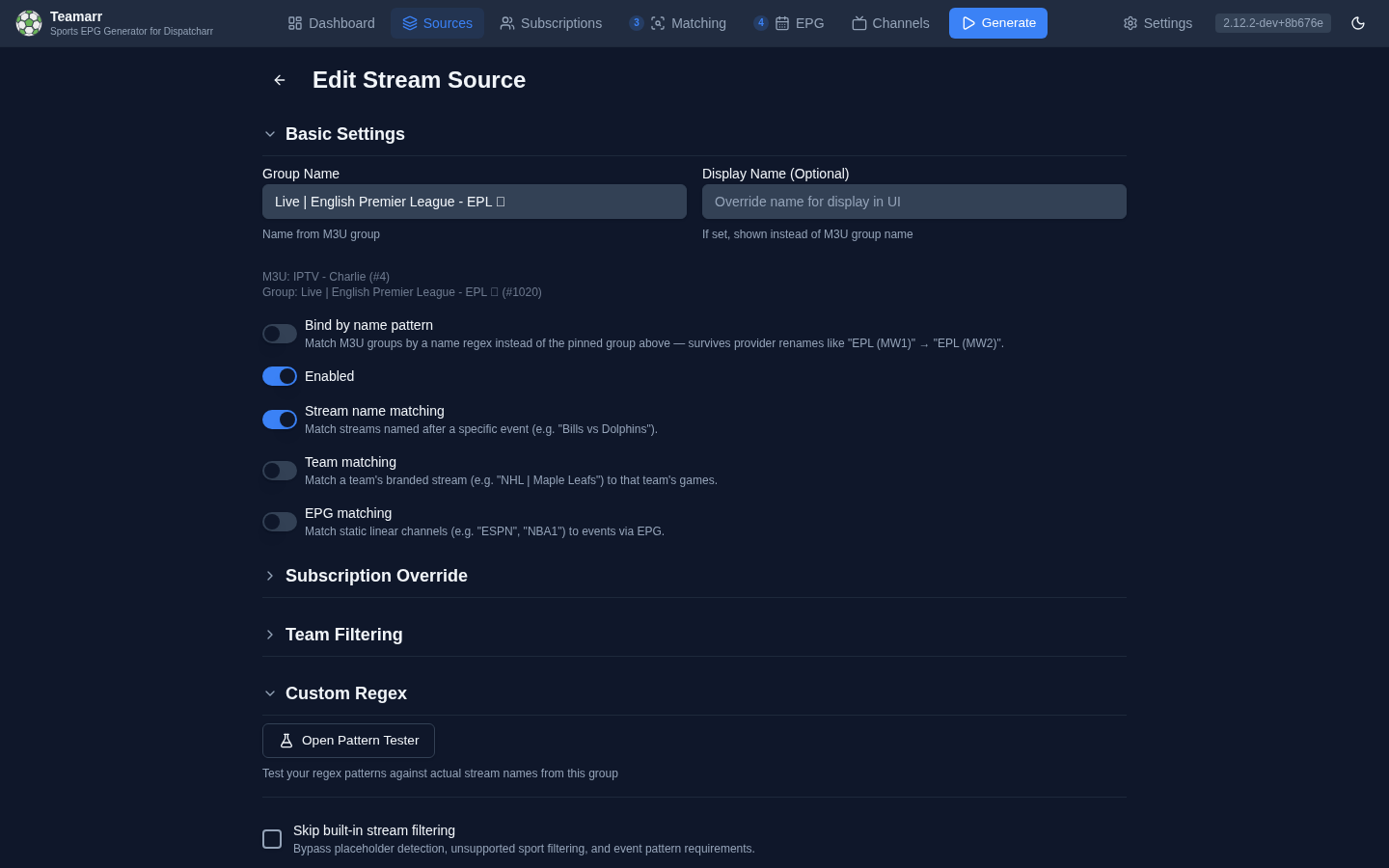
- Group Name — the M3U group this source is bound to (read-only; set at import).
- Display Name (optional) — a friendlier name to show in Teamarr instead of the raw group name.
- Enabled — toggle the source on/off without deleting it. Disabled sources are skipped during generation.
- Matching types — three independent toggles; at least one must be on (see Matching Types):
- Stream name matching — match streams whose names identify a specific event (
Bills vs Dolphins). - Team matching — team-branded streams (e.g.
NHL | Toronto Maple Leafs) match every event that team plays in the lookahead window. Built-in stream filtering is bypassed for the whole source. - EPG matching — static linear channels (
ESPN,NBA1) match events via Dispatcharr’s program guide and are time-shared across event channels. Built-in filtering is bypassed. See EPG Program Matching.
- Stream name matching — match streams whose names identify a specific event (
Subscription Override
By default, sources inherit the global Subscription. To override:
- Edit the source
- Under Subscription Override, uncheck Use global subscription
- The picker automatically seeds from your current global subscription
- Deselect any leagues or sports you want to exclude, then save
Use Match Global at any time to reset the picker back to the current global subscription and start over.
This is useful when a stream source mixes sports and you need to exclude specific leagues from it — for example, excluding MLB from a multi-sport source where the provider labels all streams with the same channel format regardless of sport.
An override fully replaces the global league set for that source — a league missing from the override won’t match here even if globally subscribed.
Team Filtering
Narrow this source’s matches to specific teams:
- Use default team filter — inherit the global filter from Subscriptions → Teams.
- Or define a source-specific filter: choose Include only selected teams or Exclude selected teams, then pick teams.
- Include all playoff & All-Star games — bypass the team filter for postseason and All-Star events, so you never miss them. A league can override this either way in Per-League Channel Config; the league’s choice wins over the source’s.
Custom Regex
Controls how this source’s streams are filtered and parsed.
Stream filters
- Skip built-in stream filtering — bypass Teamarr’s built-in non-sport filters for this source (automatic when Team or EPG matching is on).
- Inclusion Pattern — only process streams matching this regex.
- Exclusion Pattern — skip streams matching this regex.
Each is a checkbox that reveals a pattern input when enabled.
Extraction Patterns
Override how Teamarr parses stream names. By default the built-in classifier handles most formats; use custom patterns when your provider’s naming is unusual. Patterns are organized in two tabs by event type:
| Tab | Patterns |
|---|---|
| Team vs Team | Teams, Date (with optional Month/Day sub-patterns), Time, League |
| Combat / Event Card | Fighters, Event Name, Date (with Month/Day), Time |
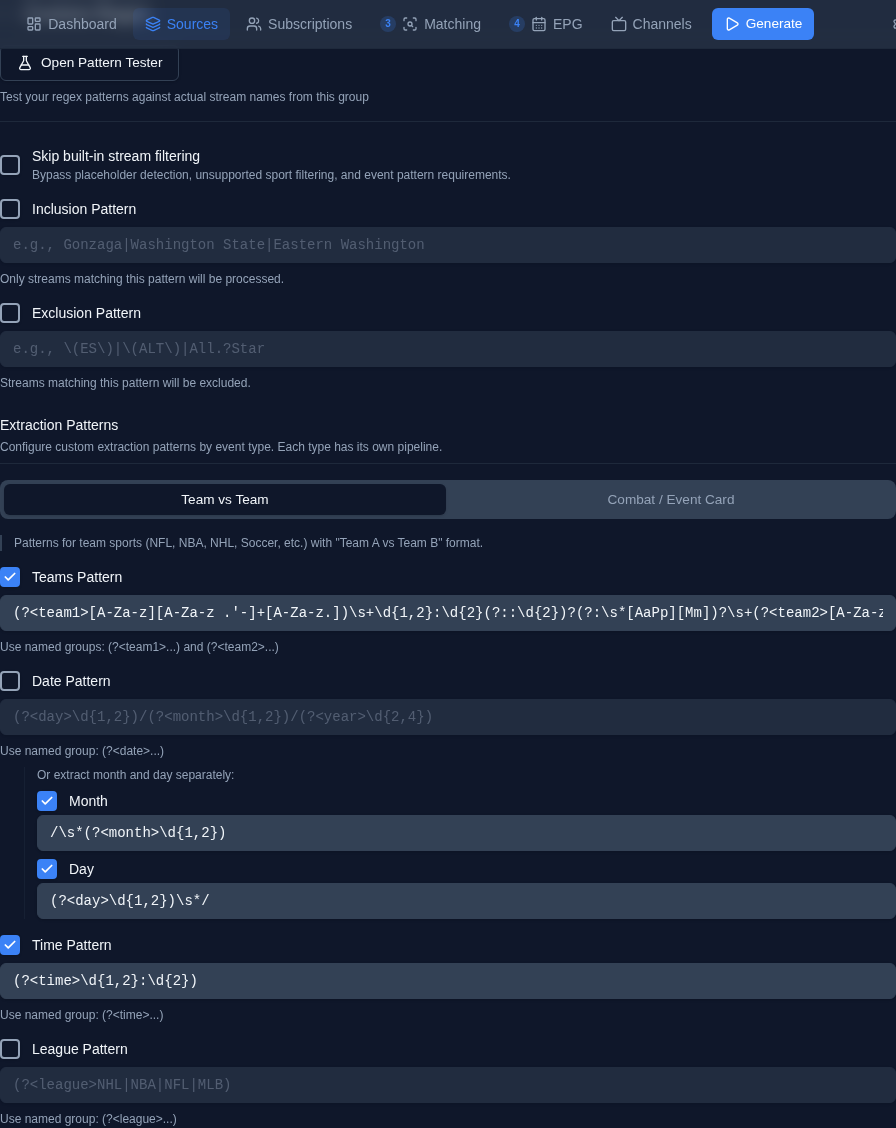
Each pattern has an enable checkbox — leave it unchecked to use the built-in parser for that field.
Named groups accept both (?<name>...) and Python’s (?P<name>...) syntax. The recognized names are team1/team2 (Teams), fighter1/fighter2 (Fighters), date or month/day/year (Date), time or hour/minute/ampm (Time), league (League), and event_name (Event name). When the recognized named groups are present they take precedence, so extra unnamed groups — like a (vs|v) separator — are safe. Without named groups, the first capture group is used (first two for Teams/Fighters).
Date patterns describe a format, not a literal date. The best way to write one is with component groups that declare the format structurally — (?P<day>\d{1,2})/(?P<month>\d{1,2})/(?P<year>\d{2,4}) says “day-first, then month, then year” and can never be misread. A single (?P<date>...) blob also works: Teamarr learns the source’s format from the whole group before matching (one 16/07 in the list proves the source is day-first, so 05/07 parses as July 5). When the format can be verified this way, the date strictly gates candidate games (±1 day for provider-timezone boundaries) and a mismatch is reported as date_mismatch; when it can’t be verified, the date only ranks candidates — it never blocks team matching outright.
League patterns can capture the name as written. The captured text is resolved to a league code before it is compared with your subscription, the same way built-in league detection works: a league code (eng.1), alias (EPL), display name (Serie A, 2. Bundesliga), or any league hint phrase (Premier League) all work. A capture that names no known league is kept as-is, so the stream is filtered as League not in group with that text shown in the detail. The Pattern Tester shows the raw capture, not the resolved code.
Tennis groups use the Teams patterns for player pairs — the two named groups become player 1 and player 2 (surname-based matching handles tournament prefixes and extra tokens). The built-in parser also recognizes the Surname, First - Surname, First provider format without any configuration.
Pattern Tester
When editing an existing source, the Open Pattern Tester button (edit mode only) opens a workspace that runs your patterns against the group’s real stream names. Highlighting is instant client-side JavaScript regex, and each stream also gets a pipeline verdict badge computed by the real Python extraction functions: green ✓ pipeline means the pattern fully extracts (both teams captured, date/time actually parseable); yellow ✗ lists the fields the pipeline would reject even if the regex visually matches. Invalid Python patterns are called out in a banner. Hover a badge to see the extracted values.
The tester also helps you build patterns: select text in a stream name to generate a pattern interactively, watch the learned date format banner confirm what Teamarr inferred from the samples, and click Apply to Form to copy the working patterns back into the editor.
Stream Timezone
Optional. Declares the timezone of dates/times embedded in this source’s stream names. Timezone markers in the names themselves (e.g., “ET”, “PT”) are auto-detected — set this only if your provider omits them and uses a different timezone than yours.