Teams
Cricket: IPL, Big Bash, SA20 and Major League Cricket support team import and team channels through ESPN, with no premium API key. Existing recognized team selections migrate automatically. The international ODI, T20I and Test format leagues remain event-only. See migration details.
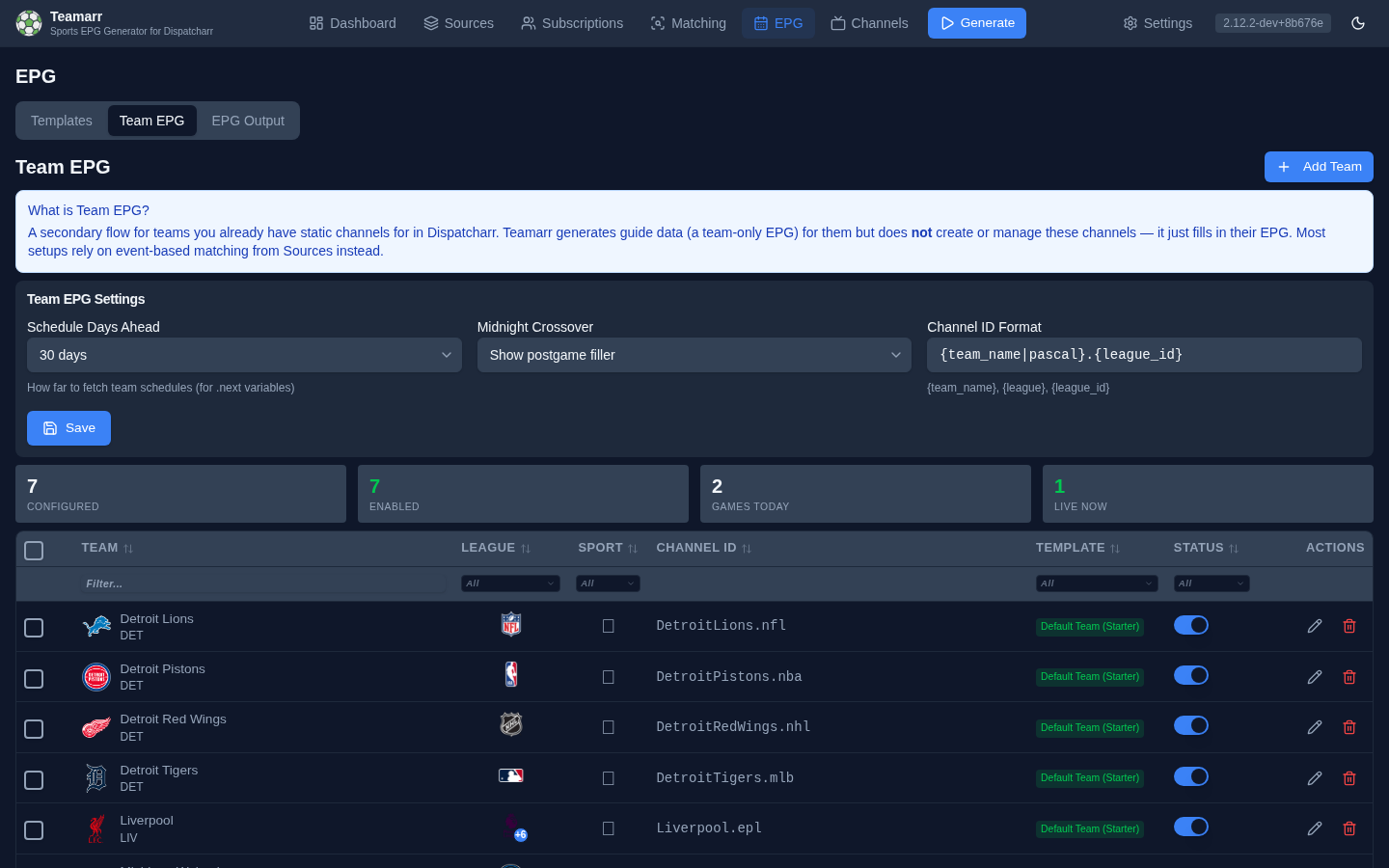
Team EPG builds one persistent XMLTV schedule per active team in the guide Teamarr writes. By default, point one of your existing Dispatcharr channels at the team’s XMLTV channel id through Dispatcharr’s normal EPG association. This is a manual, guide-only setup: Teamarr does not create or modify that Dispatcharr channel.
Optionally, enable managed channels for an individual team. Teamarr then creates and maintains one persistent Dispatcharr channel in the dedicated managed-team range, attaches the team’s XMLTV guide, and attaches matching streams from enabled Event Groups only while their game windows are active. The channel remains in place between games, with no streams attached.
How It Works
- Import teams from the league cache
- Assign a team template to each team
- Teamarr looks up each team’s schedule and writes EPG programmes for that team’s XMLTV channel
- For managed teams, Teamarr also evaluates streams from enabled Event Groups against the team’s scheduled games and reconciles temporary stream memberships on the persistent channel This does not depend on an event template being assigned: with none, matching still runs and feeds the team channels, and no event channels are created.
Each team’s EPG includes:
- Pregame programmes before the game starts
- Live event programmes during the game
- Postgame programmes after the game ends
- Idle programmes on days with no games
Importing Teams
Go to EPG → Team EPG and click Add Team to browse the league cache by sport.
- Click a sport to expand its leagues
- Click a league to see available teams
- Select teams individually or use Select All
- Click Import Selected Teams
For NCAA football and basketball, a conference filter appears next to the team search — pick a conference (SEC, Big Ten, …) to narrow the list, then Select All grabs the whole conference at once. Conference membership comes from ESPN’s season-scoped data and refreshes with the team cache, so realignment is picked up automatically. Other college sports have no ESPN conference data, so the filter doesn’t appear for them.
Teams are grouped by sport in the sidebar. The badge next to each sport shows how many importable leagues it has; each league shows its cached team count. Leagues with 0 teams haven’t had their cache refreshed yet — use the cache refresh on Settings → Advanced (Data Caches).
Managing Teams
The Teams table lists all imported teams. Columns are sortable, and a filter row under the header narrows the list.
| Column | Description |
|---|---|
| Team | Team name with logo |
| League | League the team belongs to |
| Sport | The team’s sport |
| Channel ID | XMLTV channel id — point a Dispatcharr channel at this id to wire up the EPG. Generated as PascalCase team name + league (e.g. DetroitLions.nfl) at import; regenerate in bulk with a custom format via the Channel ID action after selecting rows |
| Managed | Shows whether Teamarr manages a persistent Dispatcharr channel for this team and its channel number (Auto until the first generation assigns one). A red badge means the last generation could not create or update the channel — hover it for the reason (a hand-made channel already using the team’s tvg-id, an occupied number override, a Dispatcharr error) |
| Template | Assigned template (click to change) |
| Status | On/off toggle — inactive teams are excluded from EPG generation |
| Actions | Per-team actions (delete, etc.) |
Assigning Templates
Each team needs a team template assigned — see Team vs Event for how team templates differ. Edit a team (pencil icon) to change its template, or select multiple rows and use Assign Template to bulk-assign.
Managed Channels
The edit dialog can enable a managed channel for a team. Turning it on also activates the team, because Teamarr needs its guide data to manage the channel. Set an optional channel-number override there, or leave it automatic, and pick the channel’s lifecycle (see below) or leave it on the global setting. To switch management on or off for many teams at once, select their rows and use the Managed Channel bulk action; numbers are always assigned automatically that way.
Configure the automatic Managed Team EPG Channels range and choose priority teams in Channels → Numbering. Priority teams are numbered first when channels are created. This range is independent from event-channel numbering, so ordinary channel blocks do not consume it. Automatic numbers follow the Number Stability mode: Compact re-sorts them every run, Gapped and Strict hold them until the daily re-layout. An explicit override pins a number; a collision with another channel moves it.
Lifecycle: Persistent Or Game Days Only
The global Lifecycle setting in Channels → Numbering (overridable per team in the edit dialog) decides when the Dispatcharr channel exists:
| Mode | Behaviour |
|---|---|
| Persistent (default) | The channel always exists. Between games it is an empty channel carrying the team’s idle guide. |
| Game days only | The channel is created when one of the team’s games enters the event-channel lifecycle window and removed after it leaves — the same create/delete timing, pre/post buffers and sport durations as event channels. Between games the team keeps its ownership record, its reserved channel number, its tvg-id and its logo, so the channel that returns on game day is the same channel for Dispatcharr, Channels DVR and Emby. The Teams page shows such a team as Idle with the next game in the tooltip. |
Game-day activation is decided from the team’s schedule, not from whether a stream has matched: a team channel carrying its own guide is the right destination on game day even before a provider lists the feed, and any eligible stream (stream-name, team or EPG matched) attaches once it appears. Teamarr never removes a channel on a reading it cannot trust: if the team’s guide failed this run, the schedule provider errored, or a matched stream is still attached inside its window, the channel is left exactly as it is. An inactive team under this mode is idle. Reserved numbers are re-sorted with the rest of the managed block under Compact numbering, so the block stays contiguous whether a team is idle or on air.
Managed Team EPG channels are durable, empty Dispatcharr channels when no game is on (persistent mode). During generation, Teamarr attaches streams matched to that team’s games in any of the team’s competitions, applies stream-priority rules, and releases memberships that no longer match. Every attachment has a window: an EPG-matched linear stream keeps its programme slot plus the configured buffers, and a name-matched stream gets the game itself, widened by the lifecycle pre/post buffers. A game that is final, cancelled or outside the event-channel lifecycle window never attaches. When more than one game is inside its window at once, the channel carries the one that starts soonest and switches when that game’s window closes.
A stream’s home/away side is read from the broadcast (feed markers in the name, or the side the stream matched), not from the team whose channel it landed on, so home_feed/away_feed/team_feed ordering rules behave as they do on event channels.
Ownership And Lifecycle
Recording a team’s games
A managed team has a Record games switch in its edit dialog. With it on, each generation schedules a Dispatcharr DVR recording for every upcoming game on the team’s channel:
- Only games with a stream attached are recorded. A recording is scheduled once a stream for that game is on the team channel, which is normally well before it starts. A game nothing matched is not recorded.
- Timing. The recording starts 5 minutes before the game and runs 45 minutes past its estimated end, to cover overtime and extra innings. The end is an estimate; a game that runs far longer can be cut off.
- Naming. The recording is titled with the team and the game, so it is filed under the team in Dispatcharr’s DVR, not under whatever filler programme the guide shows at the start.
- Changes are followed. If a game’s start time moves, the same recording is updated. If the game is postponed, loses its stream, or you switch recording off, a recording that has not started yet is removed. One that has started is always left to finish, and finished recordings are never touched.
- Removing one by hand sticks. Delete a scheduled recording in Dispatcharr and Teamarr does not schedule that game again.
- Event channels are never recorded. Recording needs the team’s managed channel; switching the managed channel off switches recording off.
A full game is large — expect several gigabytes each — so check the space available to Dispatcharr’s recordings folder.
Teamarr treats a channel as managed only after it has created a record for that team. A Dispatcharr channel with the same XMLTV channel id (tvg-id) is still a manual channel, so Teamarr will not adopt, update, repair, or delete it. If that conflict exists when management is enabled, Teamarr reports it on the Teams page instead of creating a duplicate — delete or re-point the hand-made channel, then generate again.
Every decision that could orphan or duplicate a channel is made only on evidence: if the Dispatcharr channel list cannot be read, the run skips team-channel sync; if a mapped channel is missing from the list, Teamarr asks Dispatcharr for it directly and recreates it only on a confirmed “not found”. A source whose matching failed this run keeps the memberships it produced last run, so a provider blip does not clear a game off a channel.
Turn management off from EPG → Team EPG to release a channel. Teamarr applies that during the next manual or scheduled generation: it removes the proven Teamarr-owned Dispatcharr channel, then its ownership and stream-membership records. If Teamarr cannot prove ownership or Dispatcharr deletion fails, the generation records the error so a manual replacement cannot be deleted accidentally. Deactivating a team is different: the channel, its number and its identity are kept, its streams are released, and its guide stops updating until the team is active again. Deleting a team removes its configuration and its proven Teamarr-owned channel immediately; a team with no managed channel can be deleted without a Dispatcharr connection.
The Dashboard lists managed team channels for status and stream audit only. Its event-channel reset, expiry, reconciliation, orphan discovery, and deletion controls do not apply to persistent Team EPG channels.
Team EPG Settings
The Team EPG Settings card at the top of the page holds the behavior settings:
Schedule Days Ahead
How far ahead to fetch team schedules. This affects the .next template variables that show upcoming games. More days means more programmes in the EPG but longer generation times. Default is 30 days. Options: 7, 14, 30, 60, or 90 days.
Midnight Crossover
Controls what filler content is shown when a game crosses midnight:
- Show postgame filler — Display postgame content after midnight
- Show idle filler — Display idle/off-air content after midnight