Subscriptions
Your Subscription is the single setting that decides which leagues and sports Teamarr matches against. It is the gate every event passes through: if a league is not in your Subscription, Teamarr will not match its streams, will not create channels for it, and will not include it in your guide.
If your most common question is “why don’t my games show up?”, this page is almost always the answer. The number-one cause is an unsubscribed league.
If a league isn’t in your Subscription (or a Source’s override), its events are never matched or included — no channels, no guide entries, no errors. Teamarr stays quiet because, as far as it’s concerned, you didn’t ask for that league. Before debugging anywhere else, confirm the league is checked here.
What a Subscription gates
There is one global Subscription per install (a singleton). It holds:
- The leagues you follow — a list of league codes (e.g.
nfl,nba,mlb). - A soccer mode — how soccer leagues are resolved (see Soccer modes).
Every event group resolves its set of match-and-include leagues from this Subscription at generation time. A stream that matches an event in a league you haven’t subscribed to is dropped before it can become a channel.
Picking leagues and sports
Open Subscriptions — it has four tiles: Sport/League, Soccer, Teams, and Custom Leagues (the last only appears with a TheSportsDB premium key). On the Sport/League tile, check the leagues you want Teamarr to scan. Browse by sport, then tick individual leagues. Only checked leagues are matched.
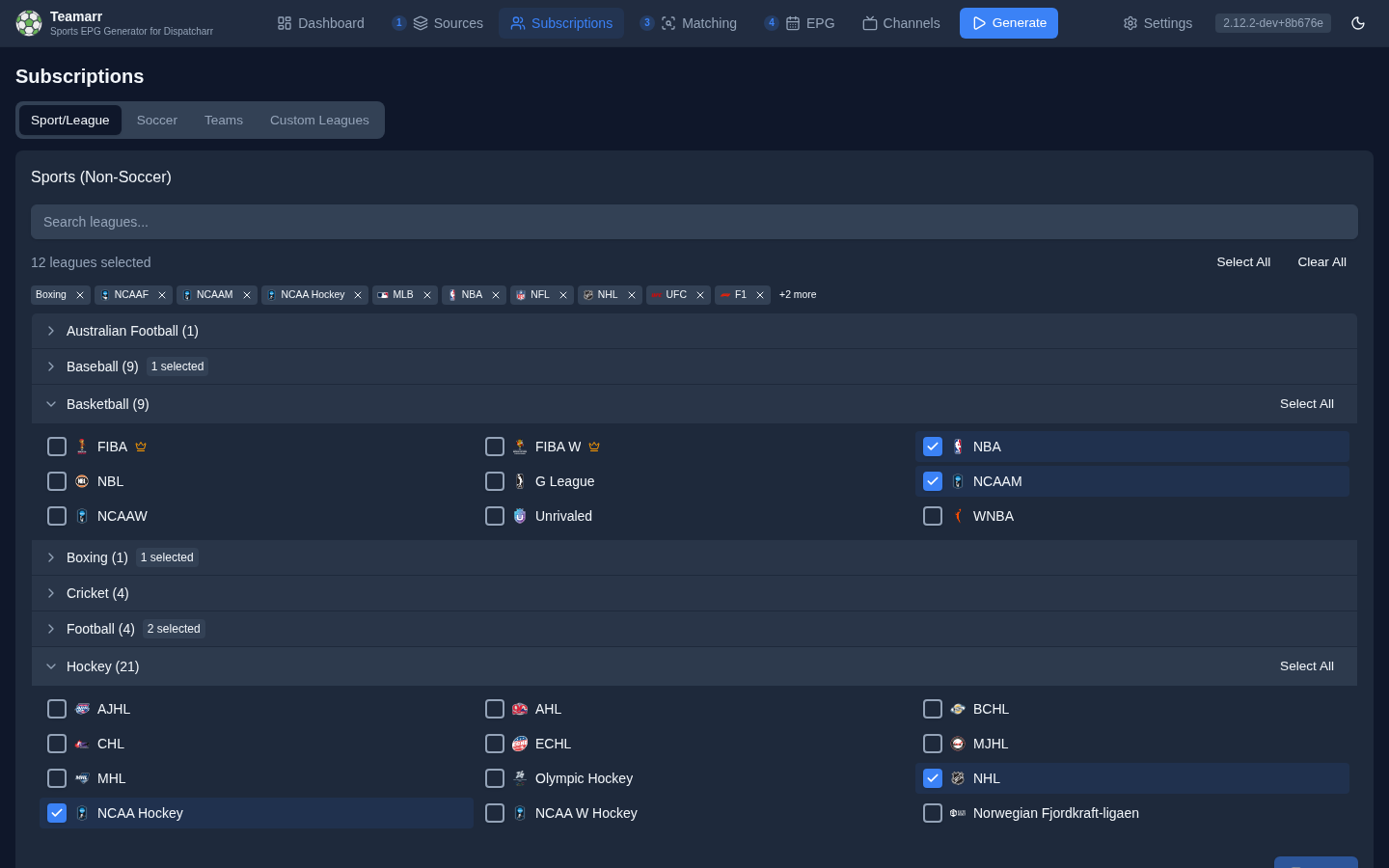
Subscribe to as many or as few leagues as you like — there is no cost to a broad subscription beyond slightly more work each generation run. A narrow subscription keeps your guide focused on exactly the competitions you care about.
Subscribe to a league before you expect its first game of the season. An unsubscribed league produces nothing, so it’s easy to forget you never turned it on.
Unsubscribing cleans up after itself. When you uncheck a league, the next generation run deletes the channels it created for that league — you no longer have to wipe all channels to apply the change. The source group can stay enabled; only the dropped league’s channels are removed.
Stale leagues
Provider discovery lists change over time, so a subscribed league can disappear from Teamarr’s league cache while still sitting in your subscription. These show up in an amber Stale leagues box on the Sport/League tile — remove them with the × and save, or just save: unrecognized codes are dropped automatically (and logged) whenever the subscription is saved, so they can’t silently waste provider calls on every generation run.
Soccer modes
Soccer is special because there are hundreds of leagues. Rather than checking each one on the Sport/League tile, the Soccer tile offers two modes:
| Mode | Behavior |
|---|---|
| Follow Teams | Leagues are discovered automatically from the soccer teams you follow — Teamarr subscribes to whatever competitions those teams play in (domestic league, cups, continental). |
| Select Leagues | Only the exact soccer leagues you check are matched. Best for focused coverage. |
In Follow Teams mode, the followed-teams list lives here in Subscriptions because it’s a subscription concept (which competitions to scan).
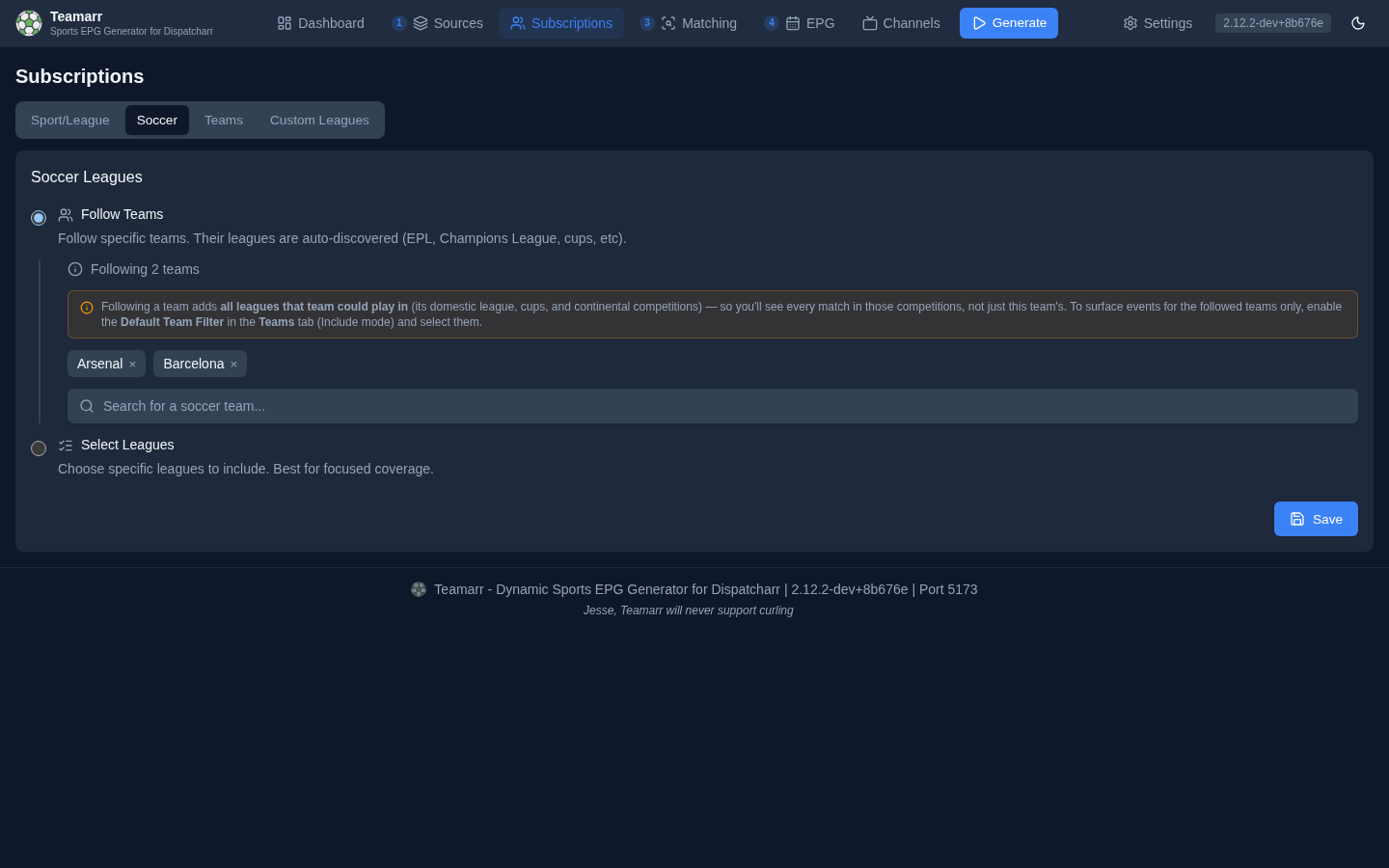
Following a soccer team adds all the leagues that team could potentially participate in — its domestic league, cups, and continental/club competitions — not just that team’s individual matches. For example, following Barcelona subscribes you to all of La Liga, the Copa del Rey, and the Champions League, so you’ll see every match in those competitions. To surface events for the followed teams only, enable the Default Team Filter on the Teams tab, set it to Include only selected teams, and select your teams. The filter is league-scoped: leagues where you’ve selected at least one team show only those teams’ games, while leagues with no selections pass through unfiltered.
Default Team Filter
The Teams tile adds an optional filter that narrows matched events down to specific teams — useful when a subscription pulls in a whole league (e.g. soccer Follow Teams mode) but you only care about a few teams in it.
- Enabled toggle — turn the filter on or off without losing your selections.
- Filter mode — Include only selected teams (keep just these) or Exclude selected teams (drop these).
- Team selection — search and pick teams, grouped by sport.
The filter is league-scoped: it only affects leagues where you’ve selected at least one team. A league with no selections passes through untouched. So you can follow Barcelona, Liverpool, and AC Milan, select exactly those three here in Include mode, and get only their matches from La Liga, the Premier League, and Serie A — while other subscribed leagues (where you’ve picked no teams) stay fully covered. Playoff and All-Star games can optionally bypass the filter so you never miss postseason or All-Star coverage. That bypass can be switched per league in Per-League Channel Config — for example on for MLB and off for MiLB.
Custom Leagues
Custom Leagues let you add a competition Teamarr doesn’t ship with. They live inside Subscriptions and are powered by TheSportsDB.
Custom Leagues require a TheSportsDB premium key — the same key every TSDB league now needs (TheSportsDB’s free tier is deprecated). The tile is hidden until you add one in Settings → General → TheSportsDB API Key.
Adding a custom league
You add a league by pointing Teamarr at its TheSportsDB entry. From the league’s page on thesportsdb.com you’ll need:
- TSDB League ID (
idLeague) — the numeric id in the page URL, e.g.4379. - TSDB League Name (
strLeague) — the league’s exact title, e.g.Swedish Allsvenskan. It must match TheSportsDB exactly. - Sport — chosen from a dropdown of functional sports only (those with a working matcher). Free-text sports aren’t allowed because the sport selects which matcher and event logic runs.
Before saving, click Test Fetch. This hits TheSportsDB live and shows you what it found: the resolved league name, its sport, and a sample of upcoming fixtures. Use it to confirm the ID resolves and returns real games before committing — a wrong ID or name otherwise produces a silently empty guide that looks like a bug.
The same checks run again server-side on save: the ID must resolve, the sport must match what TheSportsDB reports, and the league must return upcoming events. If a league is genuinely off-season (no upcoming fixtures), tick Save even if no events to override.
Auto-subscribe and the “Not subscribed” warning
Creating a custom league automatically adds it to your global Subscription, so its games start matching immediately — no extra step.
If you later uncheck that league in Subscriptions, the Custom Leagues list flags it with a Not subscribed warning badge. That league still exists, but — like any unsubscribed league — its games won’t appear until you re-subscribe it. Re-check it in Subscriptions to clear the warning.
Deleting a custom league
Deleting a custom league removes its definition and purges its cached teams and league data in one step, so nothing orphaned lingers behind. Built-in leagues can’t be deleted or edited through Custom Leagues — only leagues you added.
Per-Source subscription overrides
By default, every Source (event group) uses the global Subscription. A Source can override it with its own league set and its own soccer mode. When an override is present, that Source matches only its overridden leagues; the global Subscription is ignored for that Source.
Use this when one Source should be scoped more narrowly than the rest — for example a “Soccer only” M3U group that should never pull in other sports. Configure overrides on the Source itself; see Sources.
A Source override fully replaces the global league set for that Source — it does not add to it. A league that’s globally subscribed but missing from a Source’s override won’t match within that Source. If a Source produces no channels, check its override before anything else.