Dispatcharr Integration
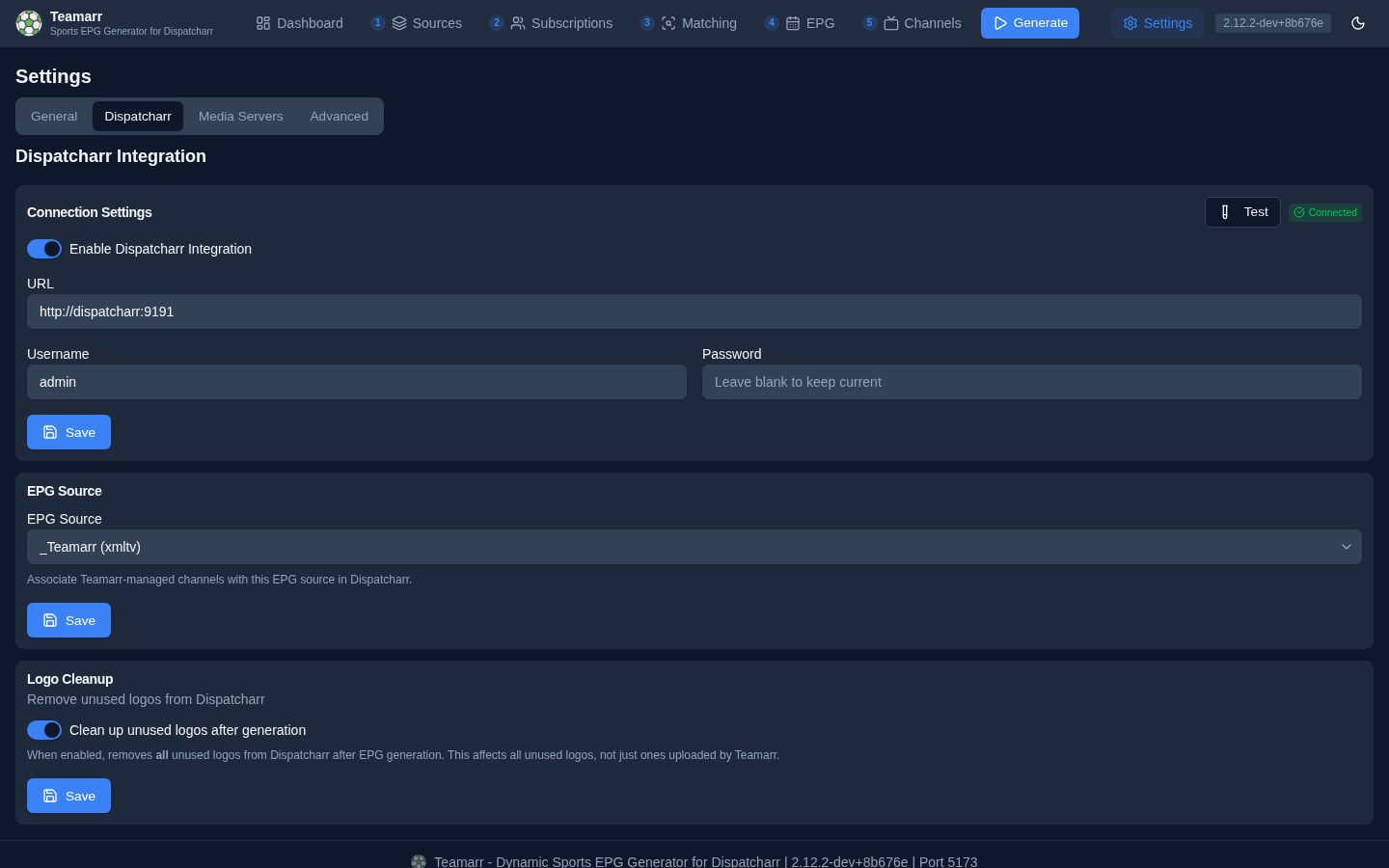
Configure the connection to Dispatcharr for automatic channel management. The tab holds three cards — Connection Settings, EPG Source, and Logo Cleanup — each with its own Save button.
Default channel profiles, the stream profile, and the channel group / group mode moved to Channels → Dispatcharr Output in the v2.7.0 IA overhaul — they’re channel-routing concerns, not connection settings.
Connection Settings
Server URL and credentials for connecting to Dispatcharr.
| Field | Description |
|---|---|
| Enable | Toggle Dispatcharr integration on/off |
| URL | Dispatcharr server URL (e.g., http://localhost:9191) |
| Username | Dispatcharr login username |
| Password | Dispatcharr login password. The saved password is never displayed — the field loads empty with “Leave blank to keep current” |
Use the Test button to verify your connection — a successful test reports the connected account’s live counts (accounts, groups, channels).
Connection Status
A status badge shows the current connection state:
| Status | Description |
|---|---|
| Connected | Successfully communicating with Dispatcharr |
| Disconnected | Configured but unable to connect |
| Error | Connection failed — hover for details; a red Connection Failed banner with the error also appears above the fields |
| Not Configured | Integration not yet set up |
EPG Source
Select which EPG source in Dispatcharr to associate with Teamarr-managed channels. This links your channels to the correct guide data. The dropdown is disabled until the connection is live, and lists each source as name (type).
If you haven’t created an EPG source in Dispatcharr yet, do that first — see the Dispatcharr Integration Guide for the full walkthrough.
Logo Cleanup
When enabled, removes all unused logos from Dispatcharr after EPG generation.
This affects all unused logos in Dispatcharr, not just ones uploaded by Teamarr. Use with caution if you have manually uploaded logos that are not actively assigned to channels.