Dispatcharr Integration
Teamarr creates and manages channels in Dispatcharr automatically. This guide covers initial setup and how the integration works day-to-day.
Initial Setup
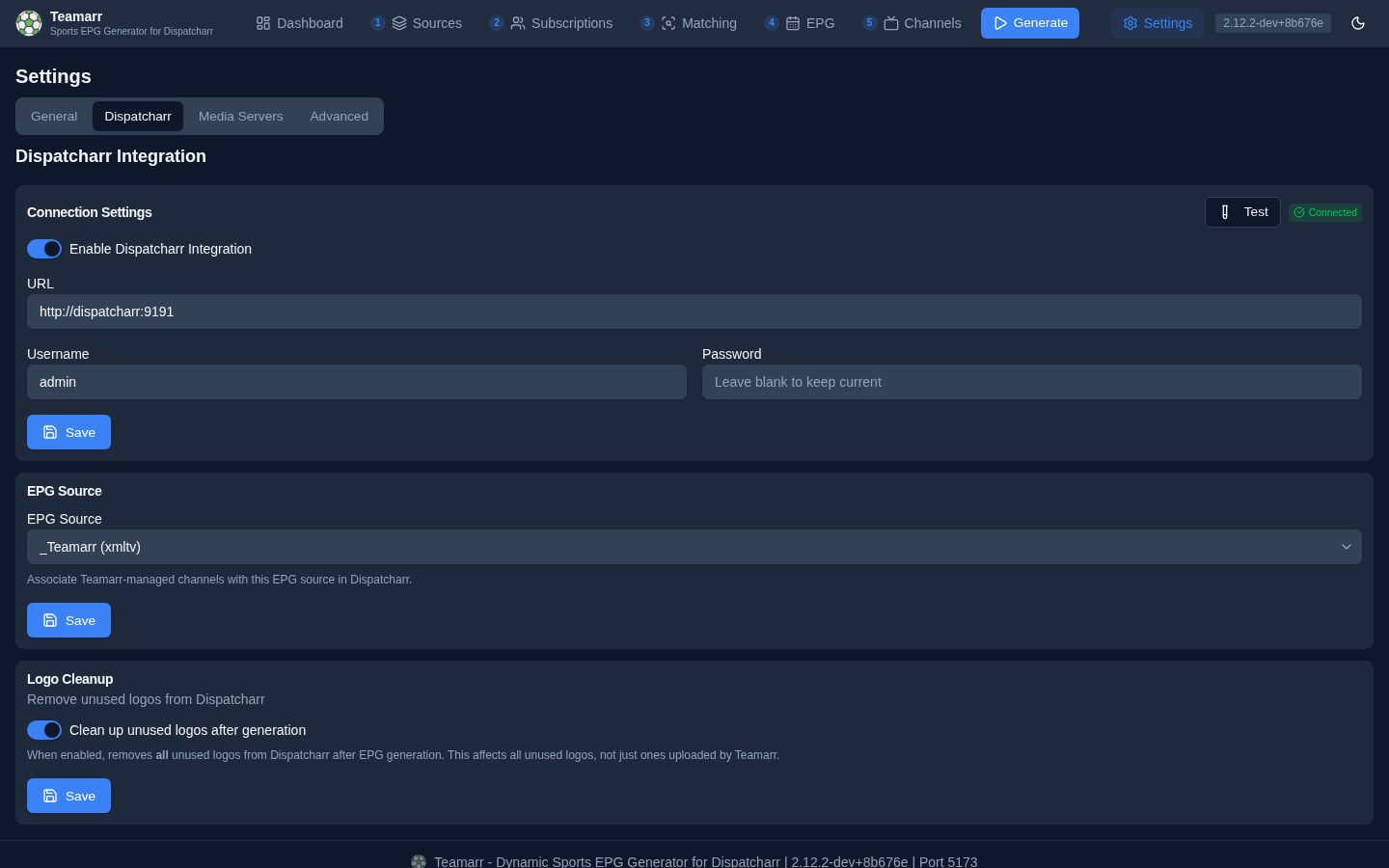
1. Connect to Dispatcharr
- Go to Settings → Dispatcharr
- Enable the integration toggle
- Enter your Dispatcharr URL (e.g.,
http://dispatcharr:9191) - Enter your Dispatcharr username and password
- Click Test — a successful test reports the connected account, group, and channel counts
- Click Save
2. Set Up EPG Source
-
Copy the EPG URL from the right end of the Dashboard status strip (e.g.,
http://teamarr:9195/api/v1/epg/xmltv)
- In Dispatcharr, add a new EPG source using that URL
- Back in Teamarr Settings → Dispatcharr, select your Teamarr EPG source from the dropdown (it activates once the connection is live)
- Click Save
3. Configure Channel Output
Go to Channels → Dispatcharr Output to configure where Teamarr channels land:
- Default Channel Profiles — which Dispatcharr profiles Teamarr channels appear in
- Default Stream Profile — which stream profile to assign to streams
- Default Channel Group — a static group, or a dynamic pattern like
{sport} | {league}that auto-creates groups ({conference},{conference_abbrev}, and{division}also available for NCAA leagues)
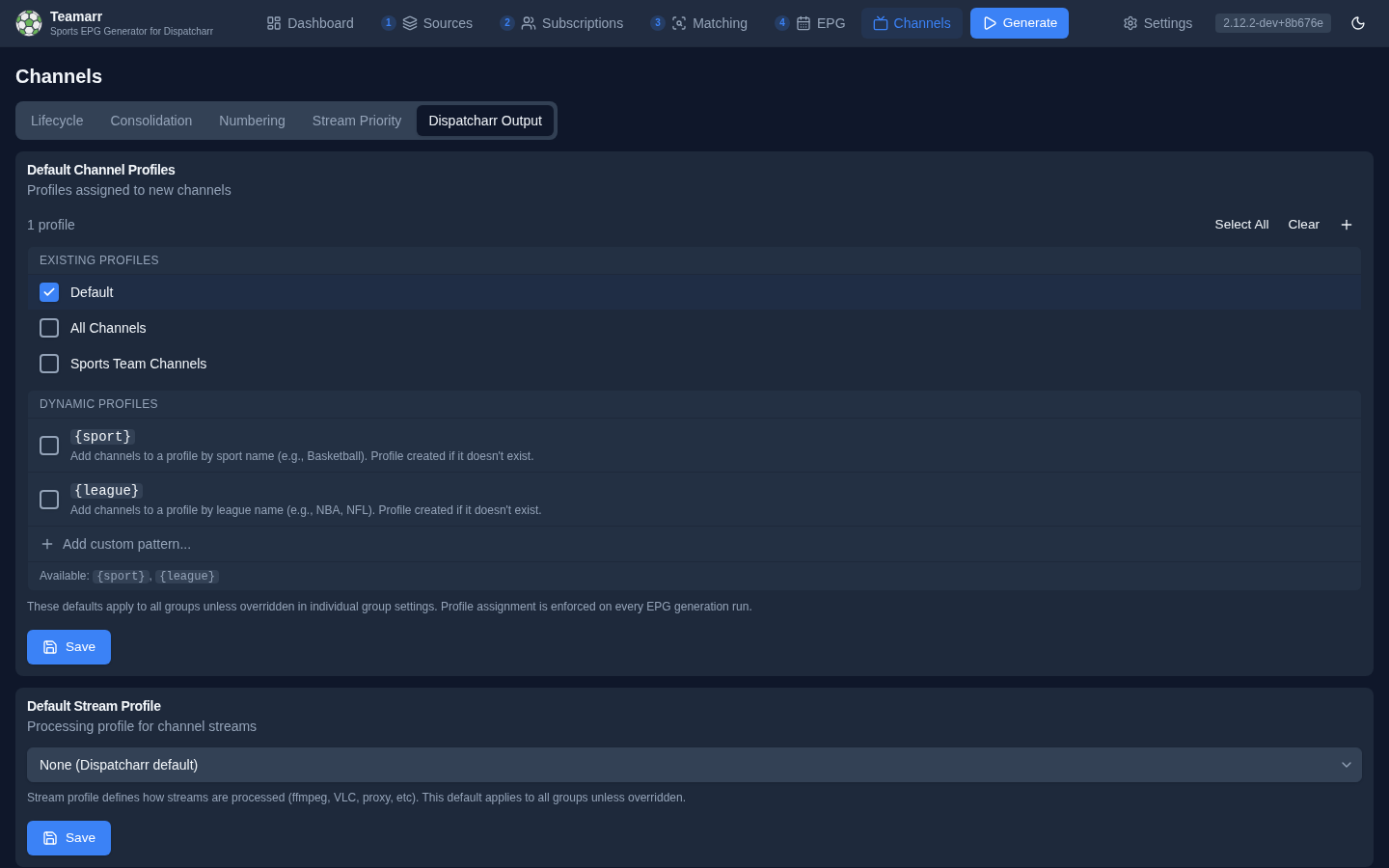
See Channels → Output for details on each option, including per-league overrides.
How It Works
Once connected, each generation run manages the full channel lifecycle in Dispatcharr:
- M3U accounts are refreshed so matching sees the latest streams
- Teamarr matches streams to events and resolves templates
- Channels are created with names, logos, EPG data, streams, and profile/group assignments
- Channels are updated when event data changes (scores, status, streams), deleted when events end (based on lifecycle timing), and drift is reconciled
- Dispatcharr’s EPG source is refreshed and channels are associated with their guide data
- Configured media servers (Emby, Jellyfin, Channels DVR) are refreshed in parallel
Profile & Group Sync
Teamarr enforces profile and group assignments on every generation run. If someone manually changes a channel’s profiles in Dispatcharr, Teamarr corrects it on the next run. Dynamic wildcards ({sport}, {league}, {conference}, {conference_abbrev}, and {division} for groups) automatically create profiles and groups in Dispatcharr if they don’t exist.
Reconciliation
Teamarr detects drift between its expected state and Dispatcharr’s actual state. On the Dashboard’s Managed Channels table:
- Drifted channels have mismatched profiles, streams, or settings — corrected on the next generation
- Orphaned channels exist in Dispatcharr but aren’t tracked by Teamarr — use Find Orphans to detect and clean them up
Logo Cleanup
Settings → Dispatcharr also has an optional Logo Cleanup toggle that removes all unused logos from Dispatcharr after each generation — not just Teamarr-uploaded ones, so use with care if you keep a manually curated logo library.
Network Configuration
Teamarr and Dispatcharr need to be able to reach each other over the network.
Docker Compose (Same Host)
If both containers are on the same Docker network, use the container name as the hostname:
# Teamarr Settings > Dispatcharr URL:
http://dispatcharr:9191

# Dispatcharr EPG source URL:
http://teamarr:9195/api/v1/epg/xmltv
Separate Hosts
Use the IP address or hostname of each server:
# Teamarr → Dispatcharr
http://192.168.1.100:9191

# Dispatcharr → Teamarr EPG
http://192.168.1.101:9195/api/v1/epg/xmltv
Connection problems? See Troubleshooting.